Install the tracking snippet
With your site created, Wazlytics has generated a tracking snippet just for it. This step gets that snippet onto your pages. There are two ways to do it: paste the script yourself, or let the WordPress plugin handle it.
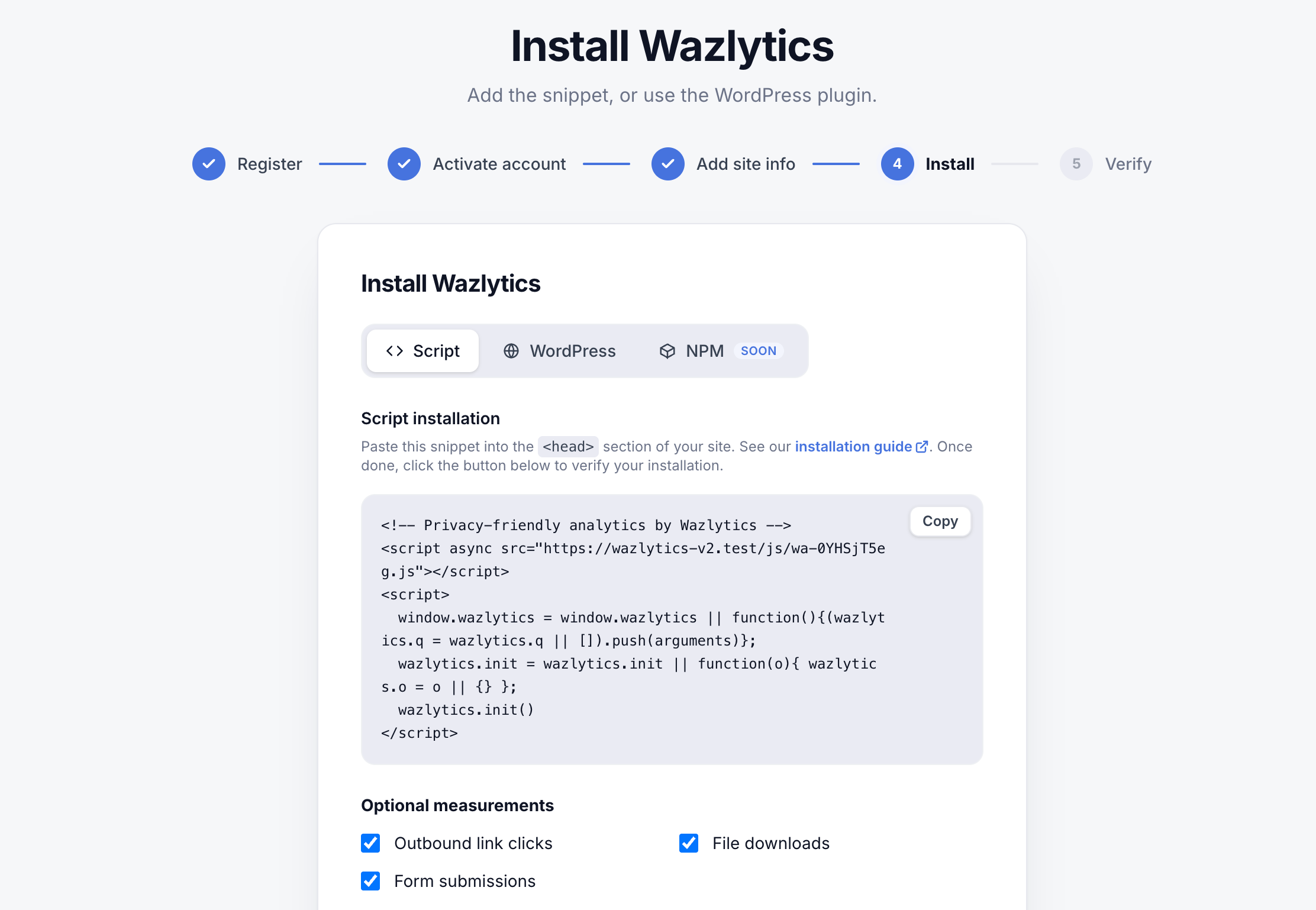
Paste the snippet
On the Script tab, click Copy and paste the snippet into the <head> of your site. Putting it in the <head> lets it load early so it catches the very first pageview. Your snippet has its own script URL:
<!-- Privacy-friendly analytics by Wazlytics -->
<script async src="https://wazlytics.com/js/wa-XXXXXXXX.js"></script>
<script>
  window.wazlytics = window.wazlytics || function(){(wazlytics.q = wazlytics.q || []).push(arguments)};
  wazlytics.init = wazlytics.init || function(o){ wazlytics.o = o || {} };
  wazlytics.init()
</script>
Tip
<head> on every page — drop the snippet there and every page is covered.Optional measurements
Below the snippet you can switch on a few extra measurements. They’re all off by default — enable any you want:
- Outbound link clicks — see which links to other sites your visitors click.
- File downloads — count downloads of PDFs, docs, and other files.
- Form submissions — track when visitors submit a form.
More advanced options — manual tagging, 404 error pages, hashed page paths, and custom properties — are covered in the Install & integrations section.
Prefer WordPress?
Switch to the WordPress tab. Instead of editing your theme, you install the Wazlytics plugin, then create a plugin token in Settings → Integration and paste it — along with your domain — into the plugin. It adds the snippet for you.
Then verify
Once the snippet is live, continue to the verify step (or open your site and watch the Realtime view). Up next: Verify your data is flowing.