Add your first site
Adding a site tells Wazlytics which website to measure and generates its own tracking snippet. You’ll set three things: the domain, an optional display name, and your reporting timezone.
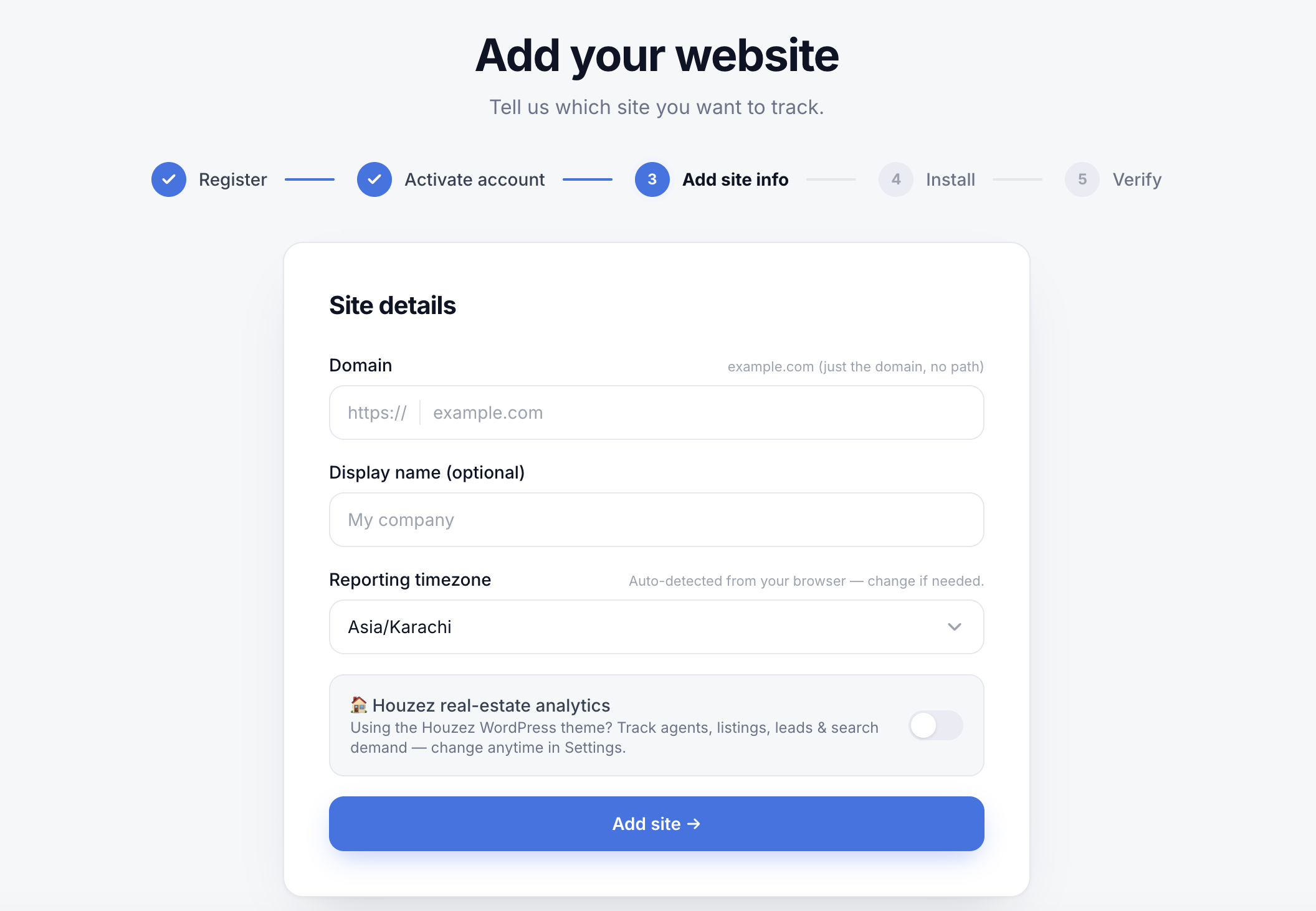
Domain
Enter just the bare domain, like example.com. The field already shows https:// in front, so leave off the protocol — and skip any path, query, or trailing slash. Wazlytics lowercases it and strips anything extra automatically.
Each domain is tracked once. If it’s already in your account, Wazlytics jumps straight to that site’s install step. If another account is already tracking it, you’ll see “This domain is already being tracked.”
Display name
Optional. A friendly name to recognize the site by — useful when the raw domain isn’t obvious at a glance. Leave it blank to just use the domain.
Reporting timezone
Wazlytics auto-detects this from your browser. Your reports group days and show dates in this timezone, so set it to the one your business runs on. Use the search box to find any zone.
Tip
After you add it
Wazlytics creates the site, generates its tracking snippet, and takes you straight to the Install step. How many sites you can track depends on your plan — see Plans & pricing for the limits.
Up next: Install the tracking snippet.