WordPress
The Wazlytics WordPress plugin adds the tracking snippet for you — no theme editing — and connects your site so setup and updates stay hands-off. Start by downloading it:
Download the plugin (.zip)1. Install the plugin
The plugin is hosted by us, not the WordPress.org directory, so you install it from the ZIP you just downloaded:
- In your WordPress admin, go to Plugins → Add New Plugin, then click Upload Plugin at the top.
- Choose the
wazlytics.zipfile you downloaded and select Install Now. - When it finishes, click Activate Plugin.
Once activated, the plugin keeps itself up to date automatically.
2. Create a plugin token
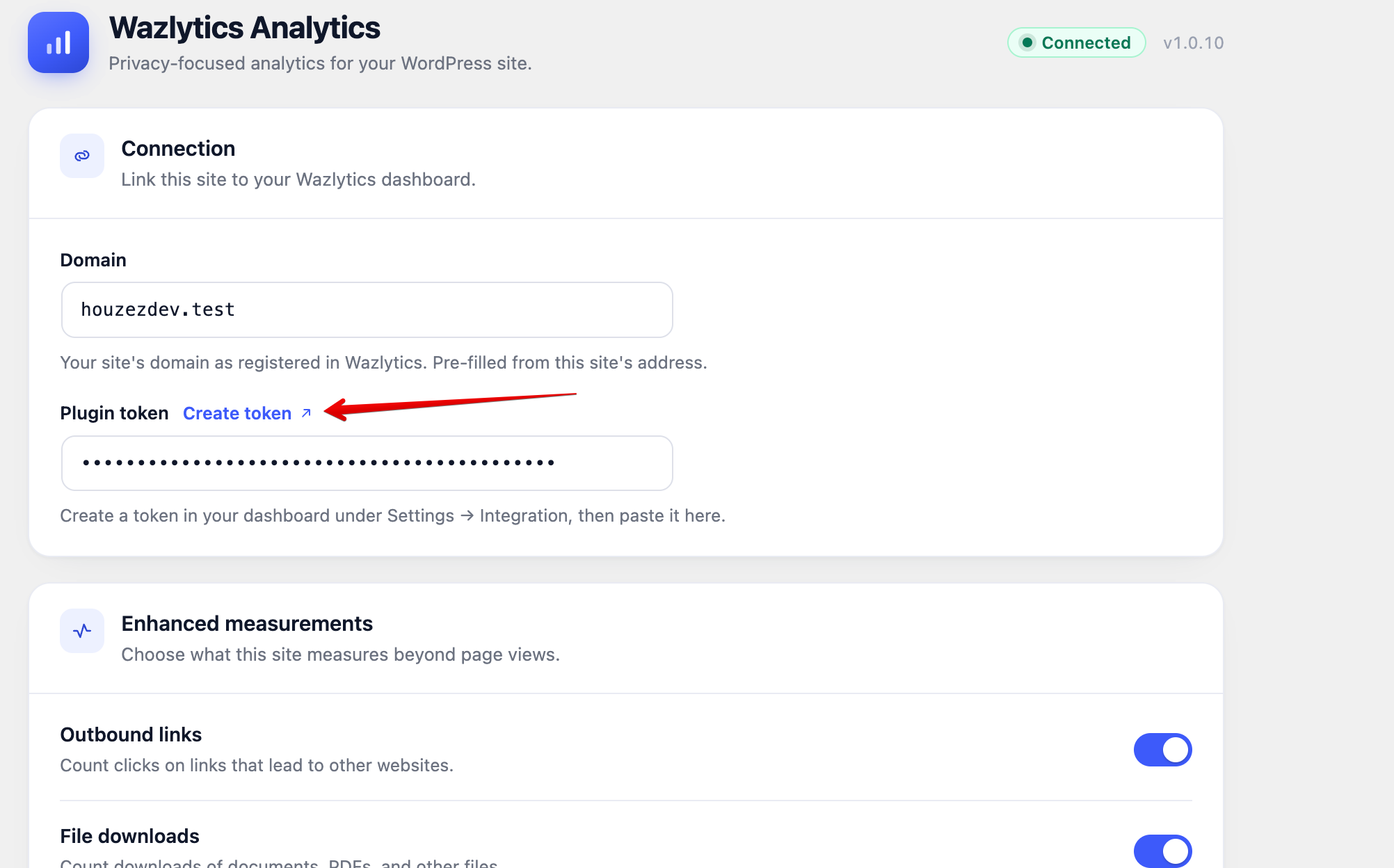
After activating, open the Wazlytics Analytics plugin’s settings in WordPress. In the Connection panel your site’s Domain is already filled in. Next to Plugin token, click Create token — it opens your Wazlytics dashboard.
In the Create plugin token dialog, type a description (for example, “WordPress”) and choose Create plugin token. Then click Copy to copy the token.
Heads up
3. Connect WordPress
Back in the plugin’s Connection panel, paste the token into the Plugin token field and save. The status changes to Connected and the plugin starts adding the snippet to your pages.
Verify
In Wazlytics, open Realtime and load a page on your site — your visit should appear within a few seconds. Deleting a token from Settings → Integration disconnects any WordPress site still using it.
Tip